




Connect a Personal Bank Account
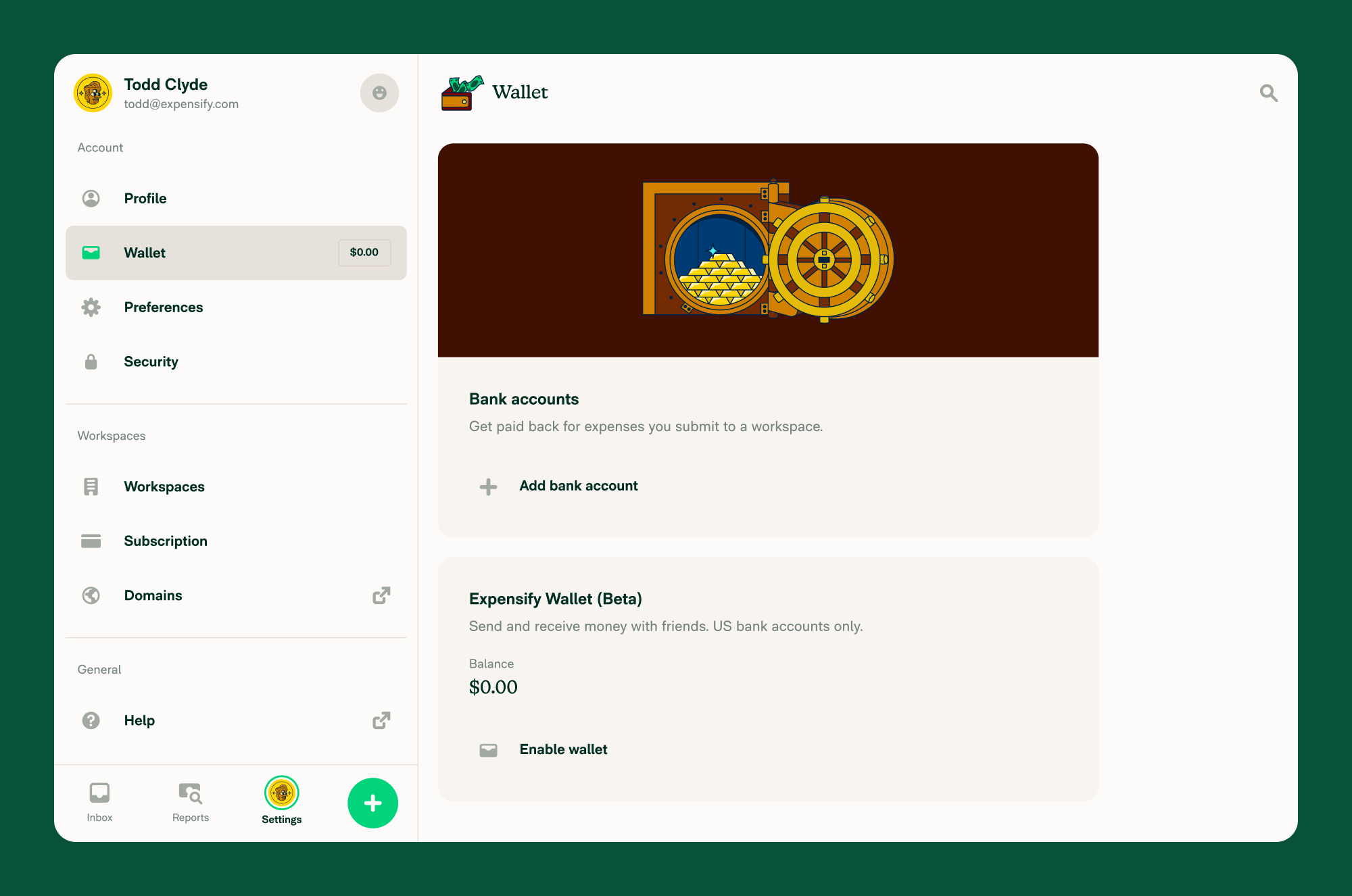
You can add a personal bank account to receive reimbursements in over 190 countries. All personal accounts are managed under Account > Wallet > Bank Accounts. The steps differ depending on whether you’re connecting a US or non-US account.
Add a U.S. Bank Account
For U.S. accounts, Expensify offers two ways to connect your bank account:
- Log into your bank: Securely link your account using your bank login.
- Connect manually: Enter your routing and account numbers without logging in.
To connect a U.S. bank account:
- Go to Account > Wallet > Bank Accounts.
- Click Add Bank Account.
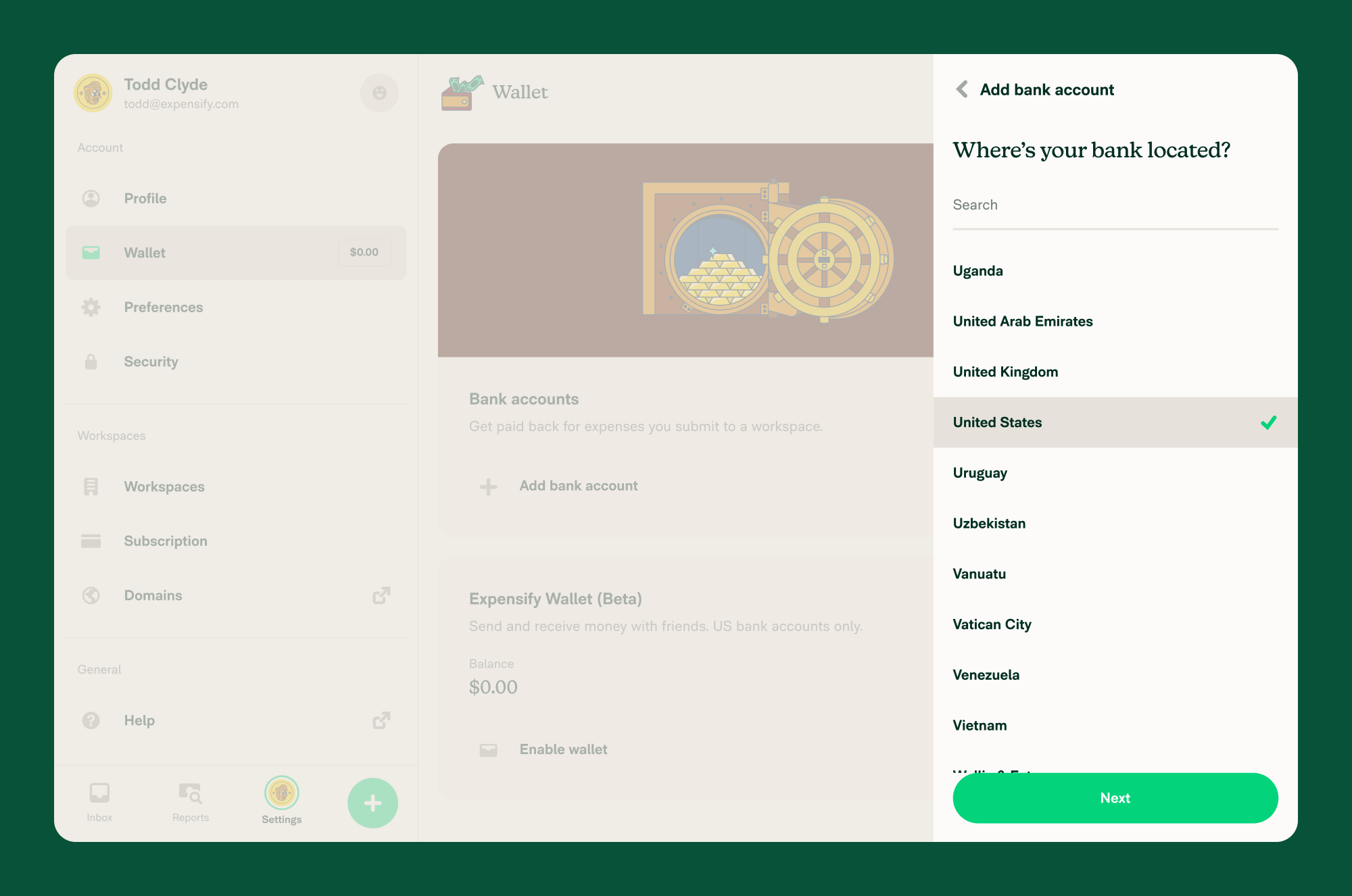
- Select United States as your country.
- Choose one of the following:
- Log into your bank:
- Select your bank from the list.
- Enter your online banking credentials and follow the prompts to complete setup.
- Connect manually:
- Enter your routing number and account number,
- Enter or update your name, address, and phone number to match your bank account details.
- Click Confirm to complete setup.
- Log into your bank:
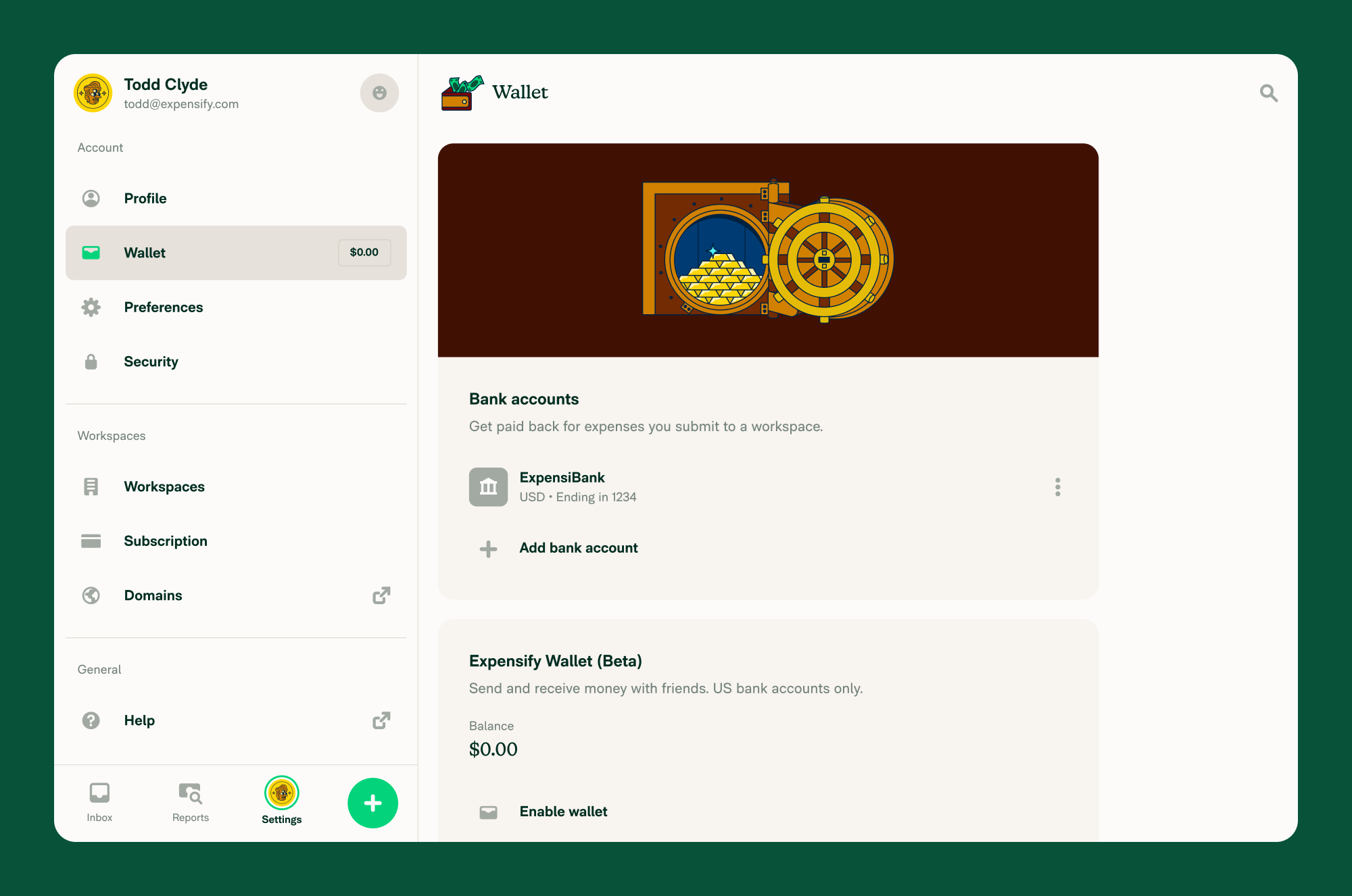
- Your bank account will appear in the Bank Accounts section.
Update a bank account with missing information
If a bank account is missing required information (such as your legal name, address, or phone number), an Action required badge will appear on the bank account row in your Wallet. This information is needed for reimbursement payments to process successfully.
To update your bank account information:
- Go to Account > Wallet > Bank Accounts.
- Tap the bank account row that displays the Action required badge.
- Click Continue setup.
- Complete the steps that appear. You will only be prompted for information that is currently missing.
- Review your information on the confirmation screen. Tap any item to edit it.
- Click Confirm to save your changes.
Once updated, the Action required badge will be removed from the bank account.
FAQ
Can I add more than one personal bank account?
Yes. You can add multiple accounts, but only one can be selected as the default for reimbursements.
Why does my bank account show “Action required”?
Your bank account is missing required information — such as your legal name, address, or phone number — that is needed for reimbursement payments. Tap the bank account row and follow the prompts to provide the missing details. The badge will be removed once the information is saved.
Can I delete a bank account?
Yes. Use the three-dot overflow menu beside any account to delete it.
Is there a fee to add a personal account?
No. Expensify does not charge you to add or use a personal account. It’s included in your Expensify subscription.
Are there countries where personal bank accounts aren’t supported?
Yes. Expensify supports personal bank accounts from 190+ countries, but there’s a small number not supported. The full list of supported countries is available when adding a personal bank account.
Why can’t I add my HSBC bank account details in Singapore?
You can. HSBC typically includes the branch code which is the final three digits of the Swift Code (HSBCSGS2XXX) in their “Account Number”. If you see figures like “146172002492”, please drop first 3 digit (146) which is the Branch Code.


